 Mehmood Ur Rehman Qureshi
An MCP browser extension is a browser extension that lets an AI agent drive the browser you already use, through the Model Context Protocol. It is one of two ways to give an agent a browser. The other is a browser MCP server that starts its own browser. Both are useful. They solve different problems, and picking the wrong one is the most common reason browser automation with an agent feels broken. This post explains the difference, shows how one MCP browser extension is wired together, and says plainly when you should use a headless server instead.
What MCP is, in two paragraphs
The Model Context Protocol (MCP) is an open protocol for connecting AI applications to tools. An MCP host, such as Claude Code, Claude Desktop, Cursor or Windsurf, starts one or more MCP servers. Each server advertises a list of tools with names, descriptions and JSON Schema arguments. The model reads that list and decides which tool to call. The host sends the call to the server and passes the result back to the model.
Most local MCP servers talk to the host over stdio: the host spawns the server as a child process and exchanges JSON-RPC messages on its standard input and output. That is the whole contract. The server can do anything behind it: query a database, call an API, or drive a browser. A browser MCP server is simply an MCP server whose tools are things like navigate, click, type and snapshot.
Two architectures for browser MCP
Every browser MCP server has to answer one question first: whose browser does the agent drive?
The server launches its own browser
The common design is a server that starts a browser itself, using Playwright, Puppeteer or the Chrome DevTools Protocol (CDP). Playwright MCP launches a Playwright-managed browser by default. Chrome DevTools MCP starts a new Chrome instance with a dedicated profile by default. This gives you a clean, reproducible browser that the server fully controls. It can run headless, it can run in CI, and with Playwright it can be Firefox or WebKit.
The cost is that the browser starts signed out. Every site greets the agent as a stranger. To reach anything behind a login, you either script the login, keep a persistent profile and sign in to it once, or load saved cookies and storage. Both of those projects now also offer a way to attach to a browser you already run: Playwright MCP has an --extension mode with its own browser extension, and Chrome DevTools MCP has --autoConnect for Chrome 144 and later.
The extension runs inside your own browser
The other design puts an extension inside the Chrome you already use and connects it to a local MCP server. The agent's tool calls go from the host to the server, then to the extension, which acts on your real tabs. Because the extension lives in your normal profile, every site you are signed into is signed in for the agent too. No re-login, no second 2FA prompt, no cookies copied into a config file.
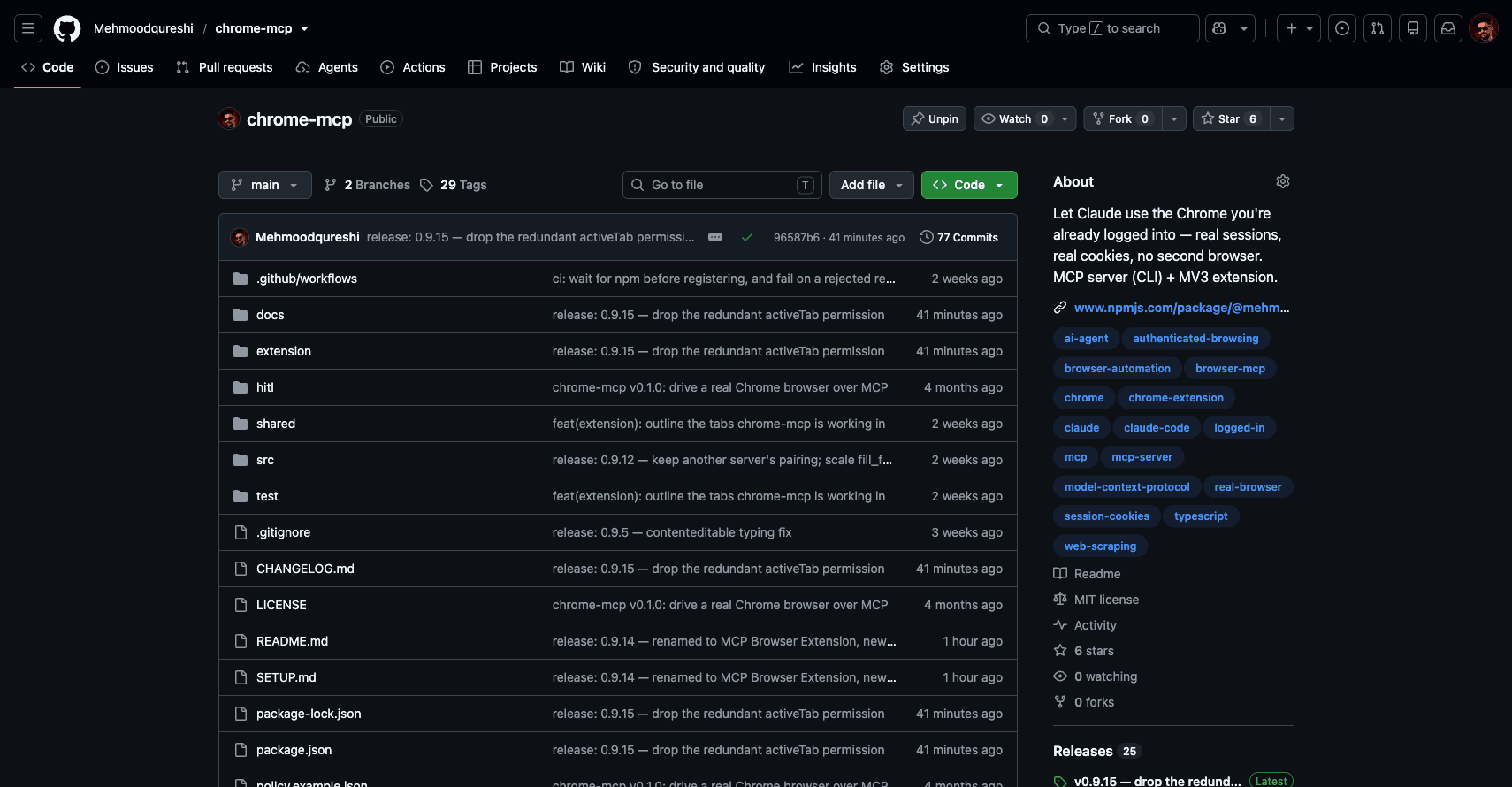
A screenshot the agent took with the screenshot tool on 9 October 2026. Settings and Unpin are visible because the browser is signed in as the repository owner.
This is what "MCP browser extension" usually means. MCP Browser Extension (this site's project, published on npm as @mehmoodqureshi/chrome-mcp) works this way. It is not the only one: hangwin/mcp-chrome and Browser MCP are also Chrome extensions that reuse your existing login state. The useful question is what each one adds on top of the session. If your main goal is reaching pages behind a login, the logged-in Chrome page and can AI agents log in to websites go into that in more depth.
Browser MCP server vs MCP browser extension
"Browser MCP server" is the broad term: any MCP server whose tools drive a browser. "MCP browser extension" is one way to build one. The difference that matters is whose browser the agent ends up in.
| Server launches its own browser | MCP browser extension | |
|---|---|---|
| Browser | A new one the server starts, often with its own profile | The Chrome you already have open |
| Signed in | No, until you script a login or load saved cookies | Yes, with your existing sessions |
| Headless and CI | Usually supported | No, it needs a real browser window |
| Engines | Playwright MCP adds Firefox and WebKit | Chrome |
| Examples | Playwright MCP, Chrome DevTools MCP | MCP Browser Extension, hangwin/mcp-chrome, Browser MCP |
So "browser MCP server or MCP browser extension" is not a choice between two products. It is a choice between a clean browser you control and your real session. For ten servers sorted by job, see the best browser MCP servers.
How the pieces connect
MCP Browser Extension has two parts: an MCP server you run with npx, and an MV3 Chrome extension. The extension is required. This build never launches or attaches a Chromium of its own, so without the extension no tool can run.
stdio between the host and the server
Your MCP host spawns the server and talks to it over stdio, like any other local MCP server. In Claude Code that is one command:
claude mcp add chrome-mcp -s user -- \
  npx -y @mehmoodqureshi/chrome-mcp \
  --allow-domain example.com --enable-mutations --persist-token
Everything before -- belongs to Claude Code. Everything after it is the server's command and flags. Claude Desktop, Cursor and Windsurf take the same arguments in a JSON config:
{
  "mcpServers": {
    "chrome-mcp": {
      "command": "npx",
      "args": ["-y", "@mehmoodqureshi/chrome-mcp",
               "--allow-domain", "example.com", "--enable-mutations",
               "--persist-token"]
    }
  }
}
The quickstart covers each host, including the cmd /c wrapper Windows needs.
A localhost WebSocket between the server and the extension
The server binds a WebSocket on 127.0.0.1, never on a public interface. The extension dials into it and drives the browser through Chrome's own extension APIs (chrome.scripting and chrome.tabs). Tool calls travel down that socket and results come back up.
If you open several host sessions at once, each starts its own server. The first one owns the port and becomes the hub. Later sessions join as peers and relay their calls through the hub to the same browser, so no session is disconnected.
Pairing
The WebSocket is guarded by a token. Each boot, the server writes a 256-bit token to ~/.chrome-mcp/handshake.json with mode 0600, and never prints it. It also writes a pairing.json into the extension folder it unpacks in your home directory, so the extension can read it and pair itself. The toolbar badge turns green when it is connected.
Without --persist-token, a fresh token is minted every boot, which is the stricter default but means re-pairing after each restart. With --persist-token, the token is kept at ~/.chrome-mcp/token and reused, so you pair once.
The extension itself comes from the Chrome Web Store, or you can load the bundled folder unpacked. The agent setup guide lets your agent do the install for you.
What tools an agent gets
The server exposes 40 tools as of version 0.9.13. They fall into a few groups. The tools reference lists every argument.
Tabs and navigation
tabs_list, tab_new, tab_select, tab_close, navigate, back, forward, reload and wait_for. tab_new with active: false opens a background tab, so the agent does not take over the tab you are working in.
Reading pages
snapshot returns an accessibility snapshot: the interactive elements on the page, each with a ref the model can target instead of guessing a CSS selector. snapshot { diff: true } returns only what changed since the last one. There are also get_text, read_as_markdown, get_html, extract_links, screenshot, print_pdf and frames_list.
Interaction
click, type, select_option, press, hover, scroll, fill_form and upload_file. Actions accept a role and accessible name instead of a selector:
{ "role": "button", "name": "Sign in" }Many tabs at once
batch runs many tool calls in one request, in parallel by default or in series. Each op goes through the same policy gate as a direct call. A typical use is opening several pages in background tabs, then reading them all in one call.
Session and diagnostics
auth_check tells the agent whether a tab is sitting on a sign-in wall, so an expired session produces an [AUTH_REQUIRED] signal instead of a confusing timeout. chrome_status and profile_use handle several paired Chrome profiles. With --enable-observers, console_logs, network_log and dialogs show why a page broke. The guides walk through each of these.
If you do not need all 40, --tools advertises only the ones you name, which cuts the context the tool catalog costs on every turn.
The security model
Handing an agent your signed-in browser is only reasonable if you decide what it can touch. MCP Browser Extension starts from deny-all. The full model is on the security page. The short version:
Deny-all by default
With no flags, the domain allowlist is empty, so the agent can read nothing. Each --allow-domain opens one host, and *.example.com covers a domain and its subdomains. Reads are gated, not only clicks, and the extension re-checks the same policy on its side.
Capabilities are separate opt-ins
Clicking and typing need --enable-mutations. Downloads need --enable-downloads. Uploads need --enable-uploads, which you can restrict to one directory with --uploads-dir. eval needs --unsafe-enable-eval. A read-only setup stays read-only. --unsafe-all-domains exists and is named that way on purpose.
What comes back is filtered
Password field values are never returned. --redact additionally scrubs secret-shaped strings such as JWTs, cloud API keys and Bearer headers out of page reads, before the output cap.
Every call is logged
Each call is written to the task's history.jsonl with the URL it touched, the allow or deny verdict, the duration and the bytes returned. "What did the agent do in my browser?" has an answer afterwards.
When headless is better
An extension inside your own Chrome is the wrong tool for several jobs. Use a server that launches its own browser when:
- You run in CI or on a server. MCP Browser Extension does not run headless. It drives a real Chrome window on a machine you own. Playwright MCP and Chrome DevTools MCP both have a
--headlessflag. - You need Firefox or WebKit. This project is Chrome only. Playwright MCP supports Firefox and WebKit.
- You want a clean, reproducible state. End-to-end tests should not depend on whatever is in your personal profile.
- The target is public. If no login is involved, a fresh browser costs you nothing and keeps the agent away from your accounts.
- You need deep DevTools data. Chrome DevTools MCP records performance traces and has memory and heap snapshot tools. That is a different job from working in your logged-in tabs.
Use an MCP browser extension when the page is behind a login you have already done, when credentials must stay out of config files, and when you want the agent to act on your real session with a tight allowlist. For a side-by-side view of the main options, read Chrome DevTools MCP vs Playwright MCP vs an MCP browser extension and the product comparison. For host-specific setup, see Claude Code, Cursor, VS Code Copilot and Codex.
FAQ
What is an MCP browser extension?
It is a browser extension that connects your real browser to an MCP server, so an AI agent in an MCP host can read and act on your open tabs. Because it runs in your normal profile, the agent uses the sessions you are already signed into.
Is an MCP browser extension the same as a browser MCP server?
No. A browser MCP server is any MCP server whose tools drive a browser. Many of them launch their own browser with Playwright, Puppeteer or CDP. An MCP browser extension is one architecture for a browser MCP server, where the browser is the one you already run.
Does MCP Browser Extension work with Cursor and Claude Desktop?
Yes. It speaks MCP over stdio, so Claude Code, Claude Desktop, Cursor, Windsurf and any other MCP host can use it. The npm package is @mehmoodqureshi/chrome-mcp.
Can the agent visit any site in my browser?
Not by default. The allowlist starts empty, so the agent can reach only the hosts you name with --allow-domain. Every other site is refused before the call reaches the page.
Is browser MCP safe?
It depends on the server's defaults and on what you allow. An agent in your signed-in browser can do what you can do there, so the useful controls are a domain allowlist, separate opt-ins for clicking, eval and downloads, and a log of every call. MCP Browser Extension starts deny-all, never returns password values, can redact secret-shaped strings from page reads, and records every call with its URL and verdict. The security page has the details.
Can it run headless?
No. It drives a real Chrome window through an extension. For headless runs or CI, a server that launches its own browser, such as Playwright MCP or Chrome DevTools MCP, is the better choice.
Set it up in a few minutes