 Mehmood Ur Rehman Qureshi
OpenAI Codex can call any MCP server, which means it can drive a browser. This guide sets up MCP Browser Extension (npm package @mehmoodqureshi/chrome-mcp) as a Codex MCP server, so Codex works in the Chrome you already use, with your sessions and logins. It covers the config, pairing the extension, choosing which domains Codex may touch, a first task, and the problems you are most likely to hit.
What you get
MCP Browser Extension has two halves. A stdio MCP server, started by Codex, and a Manifest V3 extension that runs inside your normal Chrome. The extension dials into the server over localhost and carries out the tool calls: open tabs, read pages, take an accessibility snapshot, click and type.
Because it drives your real Chrome, Codex sees what you see. If you are signed in to GitHub or an analytics dashboard, so is Codex, with no password in its context. It is not the only tool that works this way; the comparison page and logged-in Chrome page cover the alternatives. What it adds is a deny-all default: with no flags, Codex can read nothing.
What we verified about Codex MCP config
The Codex details below come from OpenAI's Codex MCP documentation (redirected from developers.openai.com/codex/mcp), and the codex mcp add syntax was cross-checked against the CLI source and tests in the openai/codex repository. As of writing:
- Codex reads MCP servers from
~/.codex/config.toml, one[mcp_servers.<server-name>]table per server. - A stdio server uses
command,args, and optionallyenvandcwd. - Optional keys include
startup_timeout_sec(default 10),tool_timeout_sec(default 60),enabled,enabled_toolsanddisabled_tools. codex mcp add <server-name> -- <command>writes the entry for you, andcodex mcp listshows what is configured.- Inside the Codex TUI,
/mcplists active servers. - Servers can also be scoped to a project in
.codex/config.toml, for trusted projects only. - The Codex CLI, the IDE extension and the ChatGPT desktop app share this configuration.
Codex changes quickly. If a key below is rejected, check those docs first.
Requirements
- Node 18 or newer (
node --version). - Chrome 116 or newer.
- The Codex CLI installed and signed in.
No browser is downloaded. The server drives the Chrome you already have.
Step 1: add the server to Codex
Decide which sites Codex should be able to reach. Each one gets an --allow-domain flag. Add --enable-mutations if Codex should click, type and navigate, and --persist-token so pairing survives restarts.
Option A: one command
codex mcp add chrome-mcp -- \
  npx -y @mehmoodqureshi/chrome-mcp \
  --allow-domain example.com --enable-mutations --persist-token
Everything after -- is the server's own command line. Keep the --, or Codex tries to read --allow-domain as one of its own options. Then confirm:
codex mcp listOption B: edit config.toml
Open ~/.codex/config.toml and add:
[mcp_servers.chrome-mcp]
command = "npx"
args = [
  "-y", "@mehmoodqureshi/chrome-mcp",
  "--allow-domain", "example.com",
  "--enable-mutations",
  "--persist-token",
]
startup_timeout_sec = 30
The startup_timeout_sec = 30 line is optional. The first npx run downloads the package, which can take longer than Codex's 10 second default.
Windows
On Windows npx is npx.cmd, a batch shim, and MCP hosts spawn servers without a shell. Wrap the command in cmd /c:
[mcp_servers.chrome-mcp]
command = "cmd"
args = [
  "/c", "npx", "-y", "@mehmoodqureshi/chrome-mcp",
  "--allow-domain", "example.com",
  "--enable-mutations",
  "--persist-token",
]
WSL2 is not required.
Step 2: load the extension
The extension is required. Without it, no tool can run. You have two ways to get it:
- Install MCP Browser Extension from the Chrome Web Store. No Developer mode, and Chrome keeps it updated. The store build is reviewed before each release, so it can trail the npm package by a version.
- Load the folder that ships inside the npm package. It always matches the server version.
For the folder, print its path:
npx -y @mehmoodqureshi/chrome-mcp --extension-pathIt prints ~/chrome-mcp-extension (on Windows, %USERPROFILE%\chrome-mcp-extension). In Chrome, open chrome://extensions, turn on Developer mode, click Load unpacked, and pick that folder.
Step 3: pairing
With the bundled folder there is nothing to do. Every time the server boots, it writes a pairing.json file (mode 0600) into the extension folder. The extension reads it and pairs itself. If you loaded the extension before the server ever ran, it re-checks every 30 seconds. If you installed from the Chrome Web Store, the server cannot write into Chrome's profile folder, so pair once instead: open the extension's Options page and paste the port and token from ~/.chrome-mcp/handshake.json. Keep --persist-token in your config and you only do this once.
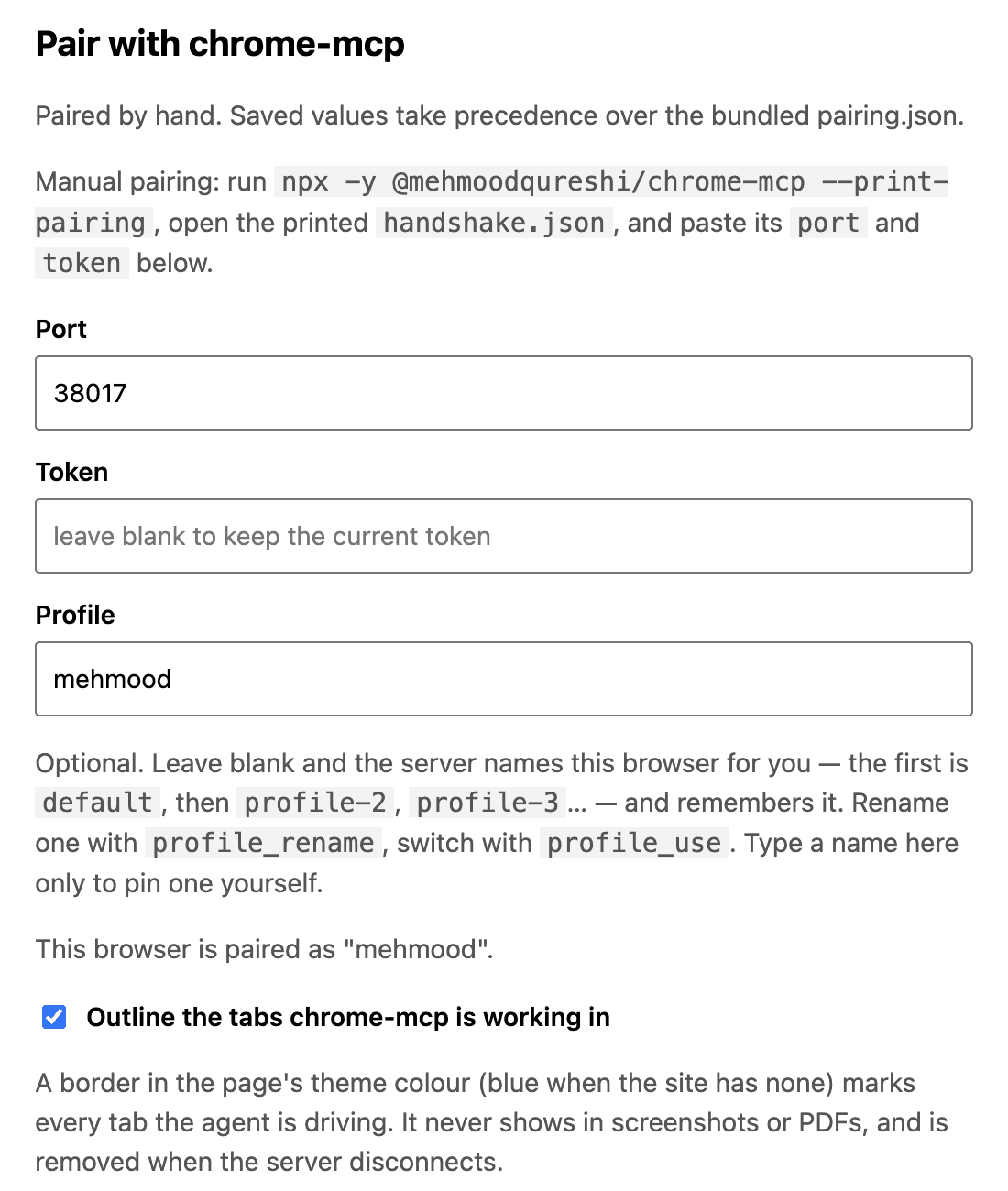
The Options page of the extension after pairing, captured on 9 October 2026. Leave Token blank to keep the saved one.
Start a Codex session so it launches the server, then look at the extension icon in Chrome's toolbar. Chrome hides new extensions behind the puzzle-piece button, so pin it once.
| Badge | Meaning |
|---|---|
| green dot | paired and connected |
| yellow dots | connecting |
| grey circle | not paired yet |
| red exclamation mark | token rejected; re-pairs by itself shortly |
If the badge stays grey (for example with a copied extension folder), run npx -y @mehmoodqureshi/chrome-mcp --print-pairing, open the extension's Options page, and paste the port and token from ~/.chrome-mcp/handshake.json. The agent setup guide walks through this fallback step by step.
Step 4: choose the allowlist
The server is deny-all by default: no domains, no clicks, no eval, no downloads, no uploads. You open exactly what a task needs.
--allow-domain github.comopens one host.*.example.comcovers a domain and its subdomains. The flag is repeatable.--enable-mutationsallows clicking, typing and navigation.--enable-downloads,--enable-uploadsand--unsafe-enable-evalare separate opt-ins.--redactscrubs JWTs, API keys and bearer tokens out of page reads. Password field values are never returned, with or without it.--unsafe-all-domainsremoves the allowlist. It is named that way on purpose.
Page text is untrusted input to the model. A page can carry instructions meant to redirect the agent. A short allowlist limits where a redirected agent can go. Every call is logged to the task's history.jsonl with the URL, the allow or deny verdict, duration and bytes. See security for the full model.
Trim the tool list
Every tool definition costs context on every turn. The server's --tools flag advertises only the tools you name, and refuses the rest:
codex mcp add chrome-mcp -- \
  npx -y @mehmoodqureshi/chrome-mcp \
  --allow-domain github.com --enable-mutations --persist-token \
  --tools tabs_list,tab_new,navigate,snapshot,click,type,get_text
Codex's own enabled_tools key filters on the client side as well. The server flag is the stronger of the two because hidden tools are also refused if called. The full catalog is in the tools reference.
Step 5: a first task
Start Codex and check the connection first:
Call chrome_status, then tabs_list, and tell me what you see.chrome_status should report the extension backend as connected. tabs_list should return tabs from your real Chrome.
Then a real task on an allowed domain:
Open https://github.com/<your-org>/<your-repo>/pulls in a new background tab,
take a snapshot, and list each open pull request with its author and age.
Codex will call tab_new, then snapshot or get_text, and summarise. The snapshot returns interactive elements with stable ref ids, so later clicks target a ref instead of a guessed CSS selector.
Finally, prove the deny-all works:
Navigate to https://news.ycombinator.com and read the front page.If that domain is not on your allowlist, the call is refused with a policy error. That refusal matters more than the happy path.
For multi-tab work, the batch tool runs many calls in one request, in parallel or serial. The guides show it, along with iframes, snapshot diffs and auth walls.
Troubleshooting: Codex browser not working
Codex says the server failed to start
Run the command by hand to see the real error:
npx -y @mehmoodqureshi/chrome-mcp --extension-pathIf it works by hand but Codex times out, raise startup_timeout_sec. On Windows, check that the command is cmd with /c first.
chrome_status shows the extension disconnected
The server is running but the extension is not paired. Check the badge. If it is grey, make sure a server has booted since you loaded the extension, then wait up to 30 seconds or use the manual pairing fallback.
Pairing breaks after every restart
Add --persist-token. Without it, the server mints a fresh token on each boot.
A page you expected to work is refused
The domain is not on the allowlist, or it is an iframe from another origin. Frames are checked against their own URL. Add the domain explicitly.
The agent stalls on a login page
Your session expired. auth_check reports a sign-in wall, and --fail-on-auth-wall turns it into an [AUTH_REQUIRED] error. Sign in again in Chrome and retry. The server holds no credentials and never signs in for you.
Several Codex sessions at once
Each session starts its own server. The first owns the bridge port and later ones join it as peers, so they all share your Chrome. Give each session its own tabs with tab_new so they do not step on each other.
Other hosts
The same server works in Claude Code, Claude Desktop, Cursor, VS Code and Windsurf with the same flags. See the Cursor guide, the Claude Code guide and the VS Code Copilot guide, or the quickstart for every config.
FAQ
Does OpenAI Codex support MCP servers?
Yes. Codex reads stdio MCP servers from [mcp_servers.<name>] tables in ~/.codex/config.toml, and codex mcp add writes them for you. The CLI, IDE extension and ChatGPT desktop app share that config.
Can Codex use my logged-in Chrome?
Yes, through an MCP server with a Chrome extension, such as MCP Browser Extension. Codex works in tabs where you are already signed in, limited to the domains you allow.
Does chrome mcp in Codex need Developer mode?
Only if you load the extension from its folder. Installing MCP Browser Extension from the Chrome Web Store needs no Developer mode.
Which sites can Codex reach?
Only the hosts you pass with --allow-domain. Everything else is refused before the call reaches the page.
Does it work in the Codex IDE extension too?
According to OpenAI's docs, the IDE extension shares the CLI's config.toml, so a server added once is available in both.
Set it up in a few minutes