 Mehmood Ur Rehman Qureshi
GitHub Copilot in VS Code can call MCP servers, so it can drive a browser. This guide sets up MCP Browser Extension (npm package @mehmoodqureshi/chrome-mcp) as a VS Code Copilot browser MCP server. Copilot then works in the Chrome you already use, signed in as you, on the domains you allow. It covers where mcp.json lives, the servers key, the code --add-mcp one-liner, the trust prompt, pairing, the allowlist, a first task and troubleshooting. It also says when VS Code's own browser tools are enough.
What you get
MCP Browser Extension has two halves. VS Code starts a stdio MCP server. A Manifest V3 extension in your normal Chrome connects to it over localhost and carries out each call: open tabs, read pages, take an accessibility snapshot, click and type.
Because it is your real Chrome, Copilot sees the sites you are signed in to, with no password in its context. The logged-in Chrome page explains the model. It is not the only tool that does this. hangwin/mcp-chrome, Browser MCP, Playwright MCP with --extension and Chrome DevTools MCP with --autoConnect can all reach a browser you already have open. This one is built around a per-domain allowlist that is deny-all by default: with no flags, Copilot can read nothing.
VS Code's built-in browser may be enough
Check this before you install anything. VS Code has its own browser tools for the agent. They are on by default under the workbench.browser.enableChatTools setting, and an organization policy can turn them off. The agent opens pages in an integrated browser (command Browser: Open Integrated Browser), where it can read content, click and take screenshots.
Two details matter. Pages the agent opens use isolated ephemeral sessions, so they share no cookies or storage with your other tabs. By default the agent can only interact with pages it opened itself. To hand it a page you opened, with your session, you click Share with Agent in the browser toolbar, and click it again to revoke.
For a local dev server or public pages, that is often all you need. Use a Chrome-based server like this one when you need:
- Your real Chrome profile, with logins that involve 2FA, SSO or a hardware key.
- Many tabs at once, for example reading ten dashboards with the
batchtool. - A deny-all allowlist and a per-call audit log, the same across VS Code, Cursor, Claude Code and Codex.
What we verified about VS Code MCP config
The VS Code facts below come from the MCP servers docs and the agent tools docs, checked on 2026-10-09:
- Workspace servers go in
.vscode/mcp.jsonin your project. User servers go in themcp.jsonin your user profile, opened with MCP: Open User Configuration. - VS Code's format uses a top-level
serverskey, notmcpServers. A portable.mcp.jsonat the project root usesmcpServers. code --add-mcpadds a server to your user profile from the command line.- Tools run from the Chat view with Agent selected in the agent picker. You may be asked to confirm each tool call.
- A chat request can have at most 128 tools enabled at a time. This server's full catalog is 40 tools, and it leaves out the ones whose capability you have not switched on.
VS Code changes quickly. If something below does not match, check those pages first.
Requirements
- Node 18 or newer (
node --version). - Chrome 116 or newer.
- VS Code with GitHub Copilot signed in.
No browser is downloaded. The server drives the Chrome you already have.
Step 1: add the server to VS Code
Decide which sites Copilot may reach. Each gets an --allow-domain flag. Add --enable-mutations if Copilot should open tabs, navigate, click and type. Without it, tab_new, navigate and the other mutating tools are left out of the tool list Copilot sees (and refused if called), so the agent can only read tabs that are already open on allowed domains. chrome_status names the flag that brings them back. Add --persist-token so pairing survives restarts.
Option A: .vscode/mcp.json for one project
Create .vscode/mcp.json in the project:
{
  "servers": {
    "chrome-mcp": {
      "type": "stdio",
      "command": "npx",
      "args": [
        "-y",
        "@mehmoodqureshi/chrome-mcp",
        "--allow-domain",
        "example.com",
        "--enable-mutations",
        "--persist-token"
      ]
    }
  }
}
Note the top-level servers key. If you paste the mcpServers block from the Cursor or Claude Desktop docs into this file, rename the key. The agent setup page calls this out too.
A workspace file is good when the allowlist belongs to the project, such as localhost for a web app. Remember that anyone who opens the repo gets the same server and domains if you commit it.
Option B: the user mcp.json for every project
Run MCP: Open User Configuration from the Command Palette and add the same chrome-mcp entry under servers. Use this when you want the browser in every workspace.
Option C: the code --add-mcp one-liner
This writes the entry to your user profile from a terminal on macOS or Linux:
code --add-mcp '{"name":"chrome-mcp","command":"npx","args":["-y","@mehmoodqureshi/chrome-mcp","--allow-domain","example.com","--enable-mutations","--persist-token"]}'The JSON has a name field plus the usual command and args. Shell quoting differs on Windows PowerShell, so editing the user mcp.json by hand is simpler there.
Windows
On Windows npx is npx.cmd, a batch shim. The VS Code docs do not cover this case, but our quickstart uses cmd /c as the command on Windows for every MCP host, and that is the form to try if the server fails to start:
{
  "servers": {
    "chrome-mcp": {
      "type": "stdio",
      "command": "cmd",
      "args": [
        "/c",
        "npx",
        "-y",
        "@mehmoodqureshi/chrome-mcp",
        "--allow-domain",
        "example.com",
        "--enable-mutations",
        "--persist-token"
      ]
    }
  }
}
Trust the server
VS Code shows a trust dialog when a server outside your trusted workspace config first starts, or when its configuration changes. That covers user-profile servers and the code --add-mcp route. Servers in .vscode/mcp.json (or a project-root .mcp.json) get no separate prompt in a trusted workspace, and do not start in Restricted Mode. If you decline, chat runs without the server's tools. MCP: Reset Trust clears those decisions.
Copilot CLI
GitHub Copilot CLI keeps its own list in ~/.copilot/mcp-config.json. Per GitHub's Copilot CLI MCP docs, you can add a local server with copilot mcp add:
copilot mcp add chrome-mcp -- \
  npx -y @mehmoodqureshi/chrome-mcp \
  --allow-domain example.com --enable-mutations --persist-token
copilot mcp list shows what is configured. The extension and pairing steps below are the same.
Step 2: load the extension
The extension is required. Without it, no tool can run. Install MCP Browser Extension from the Chrome Web Store, or load the folder that ships in the npm package. The store build is reviewed per release and can trail npm by a version. The folder always matches the server.
npx -y @mehmoodqureshi/chrome-mcp --extension-pathIt prints ~/chrome-mcp-extension (on Windows %USERPROFILE%\chrome-mcp-extension). In Chrome, open chrome://extensions, turn on Developer mode, click Load unpacked, and pick that folder.
Step 3: pairing
With the bundled folder there is nothing to do. A Chrome Web Store install is paired once from its Options page instead (see below). Each time the server boots it writes pairing.json (mode 0600) into the extension folder, and the extension pairs itself from it. Start the server once: run MCP: List Servers, pick chrome-mcp and choose the start action. VS Code can also start new servers for you through the chat.mcp.autostart setting, which its docs mark as experimental. Then pin the extension from Chrome's puzzle-piece menu and look at its badge. A green dot means paired and connected. A grey circle means no server has run yet; it re-checks every 30 seconds.
If it stays grey, run npx -y @mehmoodqureshi/chrome-mcp --print-pairing and paste the port and token from ~/.chrome-mcp/handshake.json into the extension's Options page. The agent setup page walks through this, and you can paste its setup prompt into Copilot Chat to let the agent do the rest.
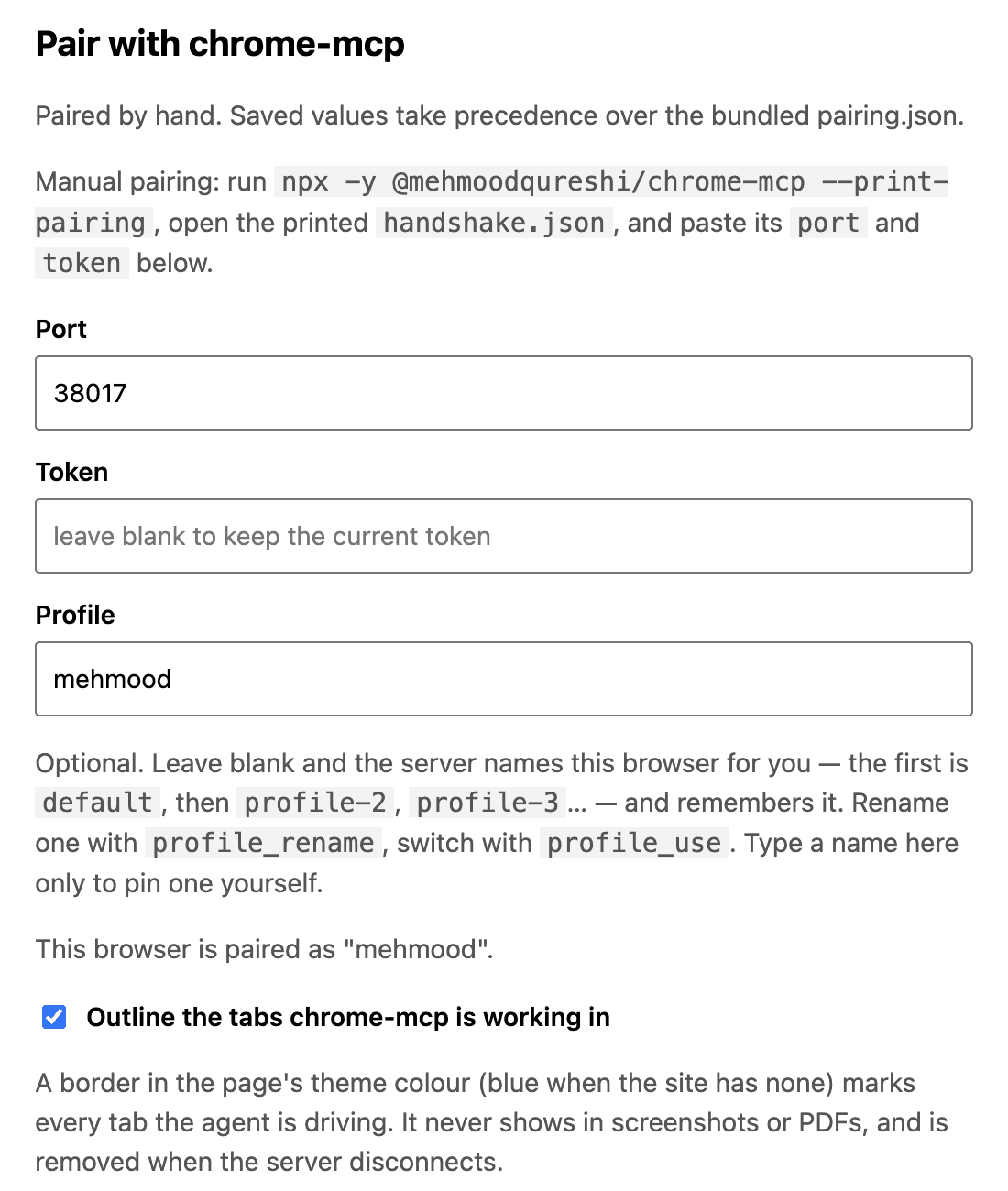
The Options page of the extension after pairing, captured on 9 October 2026. Leave Token blank to keep the saved one.
Step 4: choose the allowlist
The server is deny-all by default: no domains, no clicks, no eval, no downloads, no uploads.
--allow-domain github.comopens one host.*.example.comcovers a domain and its subdomains. Repeat the flag per host.--enable-mutationsallows opening tabs, navigating, clicking and typing.--enable-downloads,--enable-uploadsand--unsafe-enable-evalare separate opt-ins.--redactscrubs JWTs, cloud keys and bearer tokens from reads. Password values are never returned either way.--toolsadvertises only the tools you name, which saves context on every turn.
Page text is untrusted input. A short allowlist limits where a misled agent can go, and every call is logged with its URL and verdict. See security for the full model.
Step 5: a first task
Open Copilot Chat, pick Agent, and check the connection:
Call chrome_status and tabs_list, then tell me which tabs you can see.Then a real task on an allowed domain:
Open https://github.com/<your-org>/<your-repo>/pulls in a new background
tab, take a snapshot, and list each open pull request with its author.
Copilot calls tab_new, then snapshot or get_text. The snapshot returns elements with ref ids, so later clicks target a ref instead of a guessed selector. The tools reference lists all 40 tools.
Finally, prove deny-all works. Ask it to open a site that is not on your list. The call should be refused with a [POLICY_DENIED] error whose message starts Blocked: and names the flag that would allow it.
Troubleshooting
The server does not start
Run MCP: List Servers, pick chrome-mcp, and choose Show Output to see the log. Run npx -y @mehmoodqureshi/chrome-mcp --extension-path in a terminal to confirm the package installs. On Windows, check the cmd /c form.
Copilot does not see the tools
Check that you used servers, not mcpServers, in .vscode/mcp.json. Check that you trusted the server, or run MCP: Reset Trust. Make sure Agent is selected and the server's tools are enabled under Configure Tools.
Every call says Blocked
The domain is not on the allowlist. Add --allow-domain for that host and restart the server. If Copilot says it cannot open tabs or navigate at all, you left out --enable-mutations: those tools are hidden without it, and chrome_status lists what is switched off.
chrome_status shows the extension disconnected
The server runs but the extension is not paired. Check the badge, wait up to 30 seconds, or use the manual pairing fallback.
The agent stalls on a login page
Your session expired. auth_check reports the sign-in wall. Sign in again in Chrome and retry. The server never signs in for you.
Other tools for VS Code
Be honest about the alternatives. The compare page has the full table, and the Chrome DevTools MCP vs Playwright MCP post goes deeper.
- Playwright MCP installs with
code --add-mcpand launches its own browser with a persistent profile by default. Its--extensionmode connects to your running Chrome or Edge and your logged-in tabs, through the Playwright extension. It is the better pick for end-to-end tests. - Chrome DevTools MCP has a VS Code
code --add-mcpcommand and launches Chrome with its own profile by default. With--autoConnectit attaches to a Chrome you started, from Chrome 144, after you enable remote debugging and allow the connection. It is strong for performance and network debugging. - MCPBrowser (cherchyk) ships as a VS Code extension and an npm package. It uses Puppeteer with its own browser profile directory, where you log in once.
- Vibe MCP (
@vibebrowser/mcp) drives your logged-in Chrome through the Vibe extension, with an optional remote relay.
The same server setup also works in Cursor, Claude Code and Codex.
FAQ
How do I add a browser MCP server to VS Code?
Add a chrome-mcp entry under the top-level servers key in .vscode/mcp.json or your user mcp.json, or run code --add-mcp with the JSON. Then load the Chrome extension and check that its badge turns green.
Can GitHub Copilot use my logged-in Chrome?
Yes, through an MCP server with a Chrome extension. Copilot works in your real Chrome profile, limited to the domains you allow.
Do I need agent mode?
VS Code's docs describe tool use with Agent selected in the agent picker, so use that. As of 2026-10-09 they do not say whether other modes can call MCP tools.
Is VS Code's built-in browser enough?
Often, yes, for local dev servers and public pages. Pages the agent opens there use isolated ephemeral sessions, so use a Chrome-based server for your real profile, many tabs or a deny-all allowlist.
Does it work in Copilot CLI?
Yes. Add it with copilot mcp add chrome-mcp -- npx -y @mehmoodqureshi/chrome-mcp plus your flags. It is stored in ~/.copilot/mcp-config.json.
Set it up in a few minutes